Build your first site
Gather your published maps, dashboards, journeys and surveys on one public site with its own menu, theme and address, starting from a template.
Building pages requires the Editor role or higher. Publishing a site requires Publisher or Admin, and making it the organization’s home page or connecting your own domain requires Admin. A site only shows content that is already published, so publish the maps and apps you want on it first, see Sharing & publishing.
Create the page
Open Apps → Pages and press New page. Pick a starting point: Showcase (hero, your work, apps and contact), Map portal (search and every map, for residents), Project hub (one project with a map, updates and links) or Blank. Type a Name; the Address is suggested from it and checked while you type. Leave Fill it with my published content ticked and the gallery and app links start with what you have already published.
Add and arrange blocks
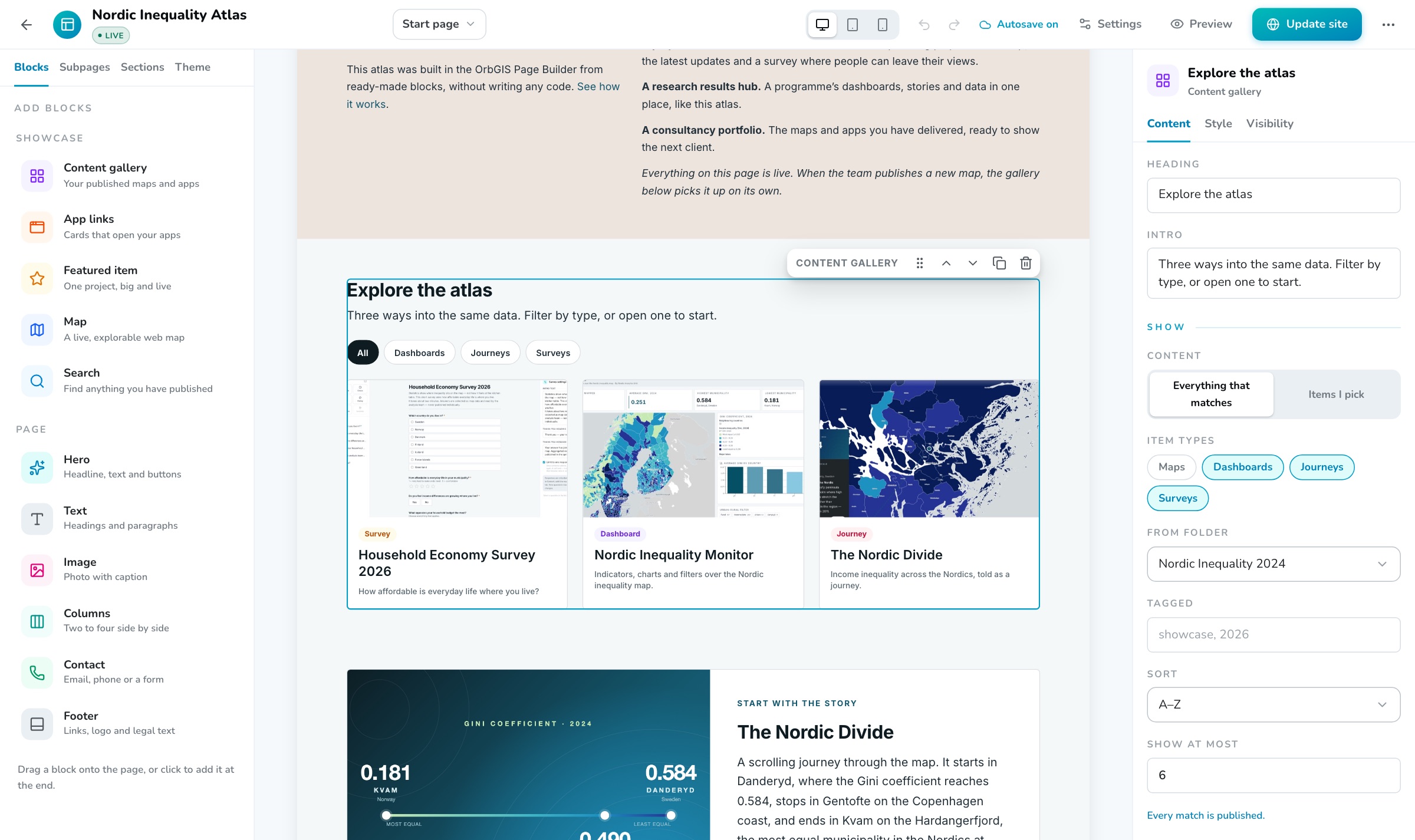
Drag a block from the Blocks tab onto the page, or click it to add it at the end. The Showcase blocks show your content: Content gallery, App links, Featured item, Map and Search. The Page blocks build the rest: Hero, Text, Image, Columns, Contact and Footer. The toolbar on a selected block or section moves, duplicates and deletes it, and the Sections tab lists the whole subpage.
Set up each block
Click a block and edit it in the inspector on the right: Content for texts, links and which items to show, Style for layout and sizes, Visibility to hide it on a device or keep it in the draft only. A link can point at your content, at a subpage of the site or at a web address.
Add subpages and the menu
In the Subpages tab, press Add a subpage, give it a name and use Add to the menu. Click the site header on the canvas to edit the logo, site name, menu links and the button on the right. A menu link can also jump to a section on a subpage, using the anchor you give that section.
Check every device
Switch between desktop, tablet and phone at the top of the builder. Preview with View as visitor shows exactly what visitors get, without drafts and hidden blocks.
Address, search and sharing
Open Settings to set the page address, the title and description that search engines and link previews show, and the share image: upload one, use the hero map, or Generate from the hero map. The Checks list flags a missing title, a subpage without a main heading, images without alt text and links to unpublished items.
Publish
Press Publish site. The site goes live at
your-org.orbgis.se/your-site. From then on your edits stay in the draft until you press Update site, and the header tells you how many changes are not live yet.
An Admin can turn on Use as the organization’s home page under Settings → Address. The site then opens at your-org.orbgis.se itself, and its old address keeps working.
Ideas for a first site#
- A map portal for residents. Start from Map portal: a search box, a gallery of every published map and a row of surveys where people can take part.
- A project or consultation page. Start from Project hub, put the project map in the hero and link the consultation survey from the contact block.
- A results hub or portfolio. Start from Showcase and let the gallery list everything you publish in one folder or with one tag, so new work appears on its own.
See a finished site in the Nordic Inequality Atlas demo. Every block and setting is described in Page Builder.