Page Builder
Build public sites from blocks: one address for the maps, dashboards, journeys and surveys you publish, with your own menu, theme, subpages and domain.
What a site is for#
A site is your organization’s public front door. Instead of a separate link for every map and app, visitors get one address that gathers everything you publish, presented under your own menu, logo and theme. In the portal a site is a Page item, built in the Page Builder under Apps → Pages. Typical uses:
- A municipal map portal, every public map in one searchable place for residents.
- A project or consultation site, a live map, updates and a survey for one planning project.
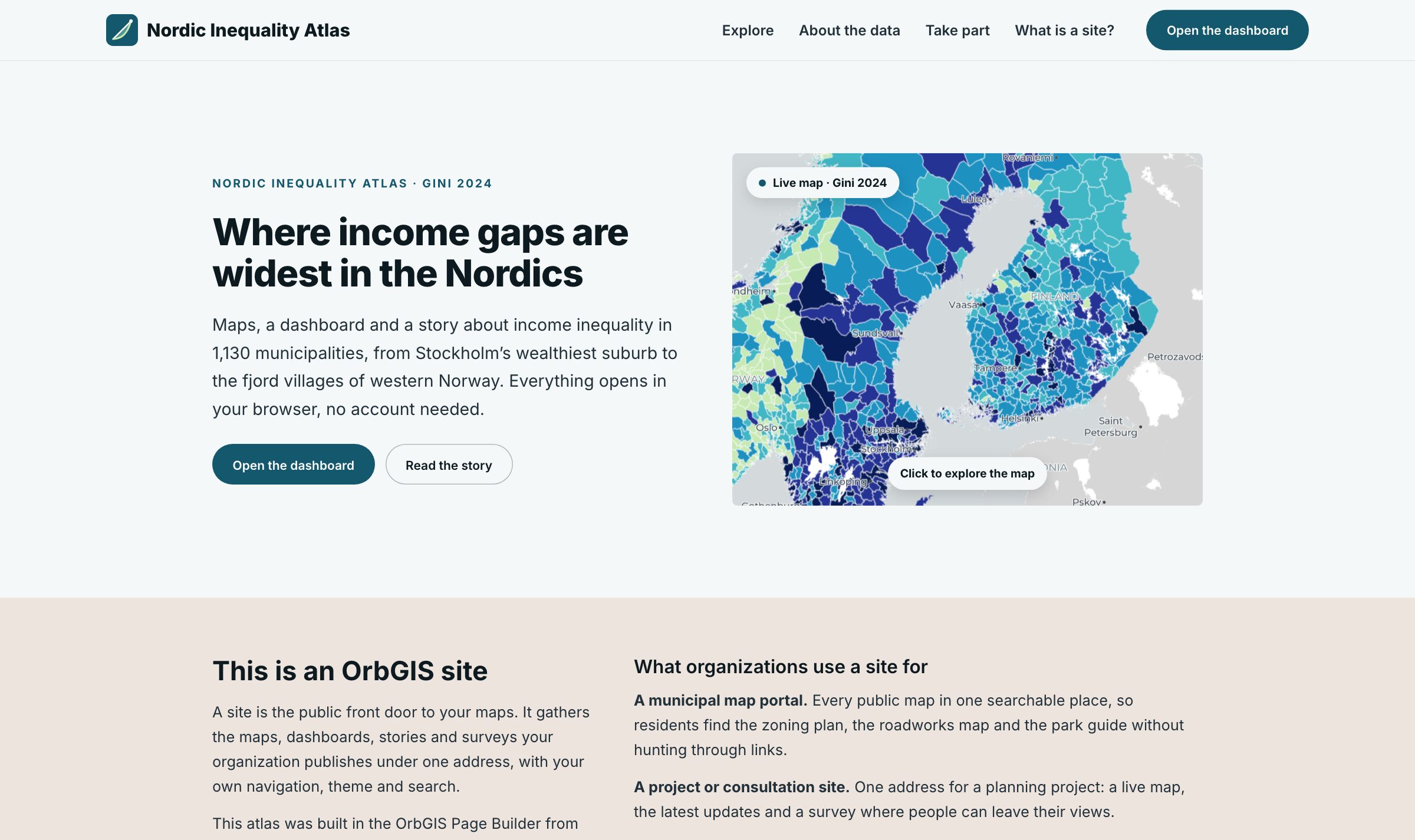
- A research results hub, a programme’s dashboards, stories and data, like the Nordic Inequality Atlas demo.
- A portfolio, the maps and apps a consultancy has delivered, ready to show the next client.
Blocks#
| Block | What it does |
|---|---|
| Hero | A headline, text and up to three buttons beside an image or a map, shown as a snapshot or live. Side by side, centered or with the image behind. |
| Content gallery | Published maps, dashboards, journeys and surveys, either everything that matches a type, folder or tag, or items you pick. Grid, list or carousel, with optional type filter chips, search box and dates. |
| App links | Cards that link to your content, a subpage or a web address, shown as tiles, rows or buttons. |
| Featured item | One map or app, big, with your own small text, heading, body, button text and image. |
| Map | A published web map, live and explorable, in three heights, with zoom buttons and a legend if you want them. |
| Search | A search box over your published content. |
| Text, Image | Rich text with headings and lists; an image with a caption, a shape and an optional link. |
| Columns | Two to four columns side by side for text, images, contact, app links and featured items. |
| Contact | Email, phone, an address and a “send us a message” link, for example to a published survey. |
| Footer | Shared by every subpage: text, logo, links and an optional “Built with OrbGIS”. |
Sections, subpages and the header#
Every block sits in a section, the unit you move up and down. A section has a background (None, Soft, Accent, Brand or an image), spacing, a width (Contained, Wide or Full width) and an optional anchor that menus and buttons can jump to. Subpages live under the site’s address, your-site/about-the-data, and the first one is the start page. The site header holds the logo, the site name, the menu and a button, and can stay at the top while visitors scroll.
What visitors see#
- A site never makes anything public on its own. It lists only items that are already published; a link to a draft is shown with a warning in the builder and removed, label and all, for visitors.
- A featured item or map whose target isn’t published is left out entirely, and a hero map that isn’t published falls back to no media.
- Blocks, sections and subpages marked Hide from visitors stay in the draft only. Device visibility hides a block on desktop, tablet or phone.
- Galleries and search are live: publish a new map in the folder a gallery reads from and it appears without updating the site.
- Visitors’ menus, buttons and search results use the page’s own language (Swedish or English, set under Settings → General).
Publishing and versions#
Publish site (Publisher or Admin) puts the page on your-org.orbgis.se/your-site. After that, visitors keep seeing the last published version while you edit; Update site publishes the draft. Settings → History keeps the 20 most recent versions, and Restore to draft brings one back. When you change the address, the old one keeps working and is listed under Old addresses that still work. Unpublish takes the site down and keeps the draft.
Addresses, search engines and languages#
- Home page. An Admin can make a site the organization’s home page, so it opens at
your-org.orbgis.seitself. - Custom domain. An Admin can connect a domain such as
karta.example.seunder Settings → Custom domain: add the DNS records shown, and the certificate is issued automatically once they resolve. - Search and sharing. Each page and subpage has a title, a description and a share image for search results and link previews. Indexable sites get a
sitemap.xml, and the Checks list flags what’s missing. - Languages. Link a Swedish and an English version of a site under Settings → Languages and search engines show each visitor the right one.
Sites follow your organization’s themes, with per-site overrides in the Theme tab. Pick the same theme as the dashboards and journeys the site links to and everything looks like one product. Step-by-step: Build your first site.